
What changes when data review is on?
Screenshots no longer upload directly to the server. Instead, they are held locally in your browser and must be reviewed, and redacted where needed, before they are added to the Screen Library or used anywhere else in Skyllful Studio.
Where can you upload from?
- The Screen Library.
- The Lesson Builder, by dragging into a step or using the upload button.
- Replica Video Capture.
- Replica Maker, if screen capture is enabled.
How do you upload and review a screenshot?
Step |
Action |
|---|---|
| 1 | Add a screenshot in any supported area, for example by dragging it into Choose files or drag and drop them here in the Screen Library. |
| 2 | A red banner appears: "You have screens that require manual review before they can be uploaded to Skyllful's servers." The screenshot's tile shows a red Data Review Required label, and its other actions stay disabled until the review is complete.
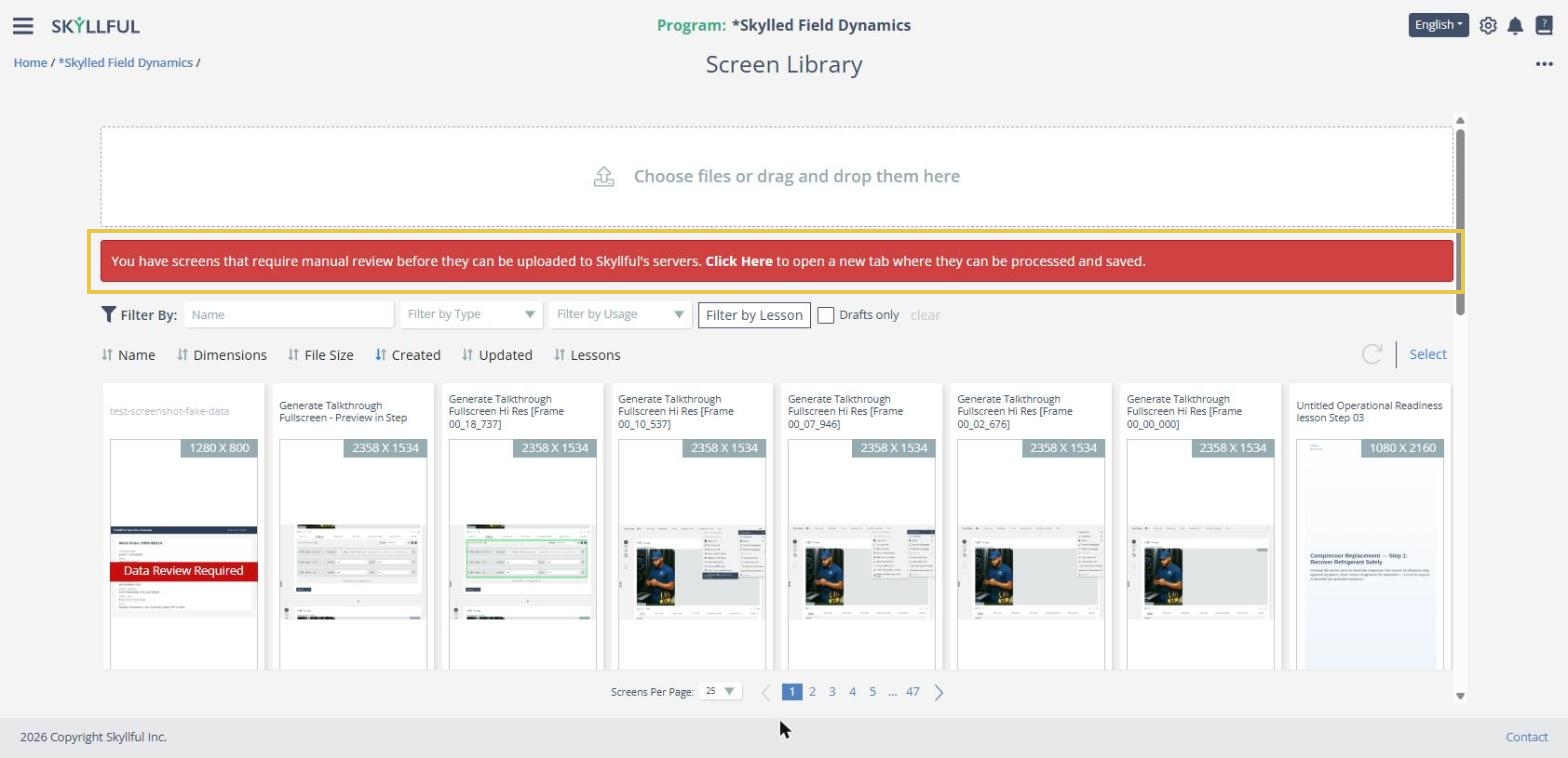 The review banner and the pending screenshot in the Screen Library. |
| 3 | Select Click Here in the banner. The Data Review Tool opens in a new browser tab with your screenshot loaded and its text detected. |
| 4 | Review the screenshot and redact anything sensitive. You can edit or remove individual pieces of detected text, or replace every occurrence of a value at once with Find and Replace. See Bulk Replace Sensitive Data in the Data Review Tool. |
| 5 | Select Upload in the bottom right of the Data Review Tool to send the sanitized screenshot to the server.
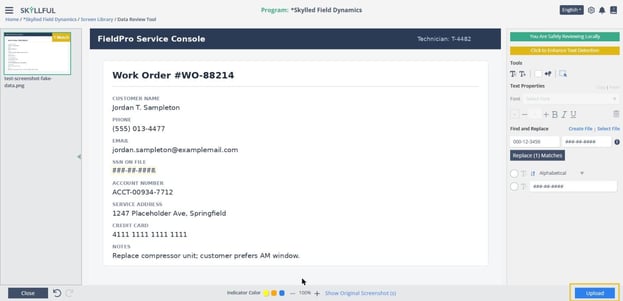 After redaction, Upload sends the sanitized screenshot to the server. |
Important notes
Until you select Upload, the screenshot exists only in your browser. It is held in the browser tab where you added it, and each screenshot waiting for review is listed on the left side of the Data Review Tool so you can work through them one at a time.
If you want to discard a screenshot instead of uploading it, select Close in the Data Review Tool. An Unsaved Changes! dialog warns that changes not uploaded to Skyllful's servers will be lost. Select Leave Anyway to discard, or Cancel to keep reviewing. Closing the browser tab has the same effect. A page refresh alone does not discard a pending screenshot.
Skyllful Knowledge Base | Content Developers, Instructional Designers