
What is the Image Library?
The Image Library is the central store of images for a Learning Program. Every thumbnail your team and your learners see comes from here, along with the background images behind your lesson modes.
Where the image appears |
What it is |
|---|---|
| Learning Program | The program thumbnail |
| Course | The course thumbnail |
| Module | The module thumbnail |
| Lesson | The lesson thumbnail, which learners see in Skyllful Simulator |
| Assignment | The assignment thumbnail, which learners see in Skyllful Simulator |
| Lesson modes | The mode background, which learners see in Skyllful Simulator |
Because all of those images are drawn from one place, the Image Library is where the visual consistency of a program is managed. It is worth curating rather than letting it fill up.
Each Learning Program has its own Image Library. Images uploaded to one program are not available in another.
It is one of three asset libraries in Studio.
The Image Library |
The Screen Library |
The Video Library |
|---|---|---|
| Thumbnails and lesson mode backgrounds | Screen Replicas built from captured application screens | Lesson videos and source recordings |
How do you open the Image Library?
You can reach it two ways.
Step |
Action |
|---|---|
| 1 | Option A: Open your Learning Program and select Image Library in the Quick Links row. |
| 2 | Option B: Select the menu icon (☰), select your program name, select Studio, then select Image Library. |
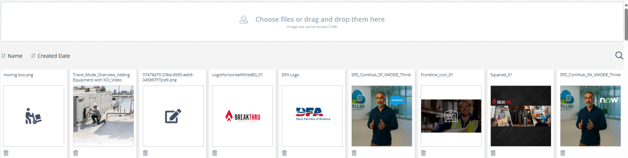
The Image Library: upload area, sort controls, and the image grid.
How do you add images?
Step |
Action |
|---|---|
| 1 | Open the Image Library. |
| 2 | Select Choose files at the top of the screen, or drag your images onto the upload area. |
| 3 | Select one or more images. You can upload several at once. |
Your images appear in the grid below the upload area as soon as they finish uploading.
Requirement |
Detail |
|---|---|
| Accepted formats | PNG and JPEG only |
| Maximum file size | 5 MB per image |
| Multiple uploads | Yes, you can select several files in one go |
If an image is rejected, check the format and the file size first. Those are the two limits the library enforces.
How do you use an image?
You do not select images from inside the Image Library. It is a store, not a picker. You choose the image from the field that needs it.
Step |
Action |
|---|---|
| 1 | Open the item you want to give a thumbnail: a Learning Program, course, module, lesson, or assignment. |
| 2 | Select the image field. On a course or module this is the Choose or upload image area in the create or edit dialog. |
| 3 | Choose an image, or upload a new one from that field. |
Lesson mode backgrounds are set in Lesson Builder rather than on the item itself.
Upload once, then reuse the image anywhere in that Learning Program.
How do you find an image?
The library shows every image in the program as a thumbnail with its file name above it. Two controls help you narrow it down.
Control |
What it does |
|---|---|
| Search | Select the magnifier at the right of the toolbar to open a Search box, then type part of the image name. |
| Sort | Select Name or Created Date to reorder the grid. Select the same control again to reverse the order. |
Because the grid is searched by file name, name your images in a way your team will recognize later. A descriptive name such as SFD_Logo_White is far easier to find than an automatically generated string of characters.
How do you remove an image?
Select the trash icon below an image's thumbnail.
Before you delete, check whether the image is still in use. It may be the thumbnail on a course, module, lesson, or assignment, or the background on a lesson mode, and removing it may leave a gap in that content.
FAQ
What is the Image Library used for? It holds the thumbnails shown on Learning Programs, courses, modules, lessons, and assignments, plus the background images behind lesson modes.
What image formats can I upload? PNG and JPEG only. Other formats are not accepted.
How large can an image be? 5 MB per image.
Can I upload more than one image at a time? Yes. Select several files at once, or drag a group onto the upload area.
Is the Image Library shared across Learning Programs? No. Each program has its own library, so an image uploaded to one program is not available in another.
Why can I not click an image to insert it? The Image Library stores and manages your images rather than inserting them. Choose the image from the field that needs it, such as the thumbnail field on a course or module.
Where do learners see these images? The assignment thumbnail appears to learners in Skyllful Simulator, and lesson mode backgrounds appear behind the lesson as they work through it.
Skyllful Knowledge Base | Content Developers