
What is Local Data Masking?
The Data Review Tool lets instructional designers safely sanitize screenshots before they are uploaded to Skyllful. It detects the text in a screenshot directly in your browser, then lets you edit, mask, restyle, or bulk replace sensitive information before anything is sent. Nothing reaches Skyllful's servers until you review the screenshot and select Upload. While you work, the tool displays You Are Safely Reviewing Locally so you know the screenshot has not left your device.
The Data Review Tool with a screenshot held for local review. Detected text is outlined, and the indicator confirms the review is happening in your browser.
Why does it matter?
- Compliance protection for frameworks including HIPAA, GDPR, and FERPA.
- Removes an adoption barrier for security-conscious organizations.
- No external tools required. Designers redact directly in Skyllful Studio.
What controls turn it on?
Three independent settings govern the capture and review workflow at the Learning Program level. They live under Replica Capture Settings on the Screen Replicas tab of Learning Program Settings.
Setting |
What it does |
|---|---|
| Force data review on all screenshots | Requires every screenshot to go through local review before it uploads. |
| Allow users to upload source videos to Video Library | Controls whether source videos can be uploaded to the Video Library. |
| Upload videos dropped into Replica Video Capture to Server | Determines whether videos dropped into Replica Video Capture upload automatically. |
See Enabling the Data Review Tool in a Learning Program to configure these.
How do screenshots enter review?
When data review is on, screenshots route to local review when they are added through:
- Drag and drop, or file selection, in the Screen Library.
- Replica Video Capture.
- Lesson Builder uploads.
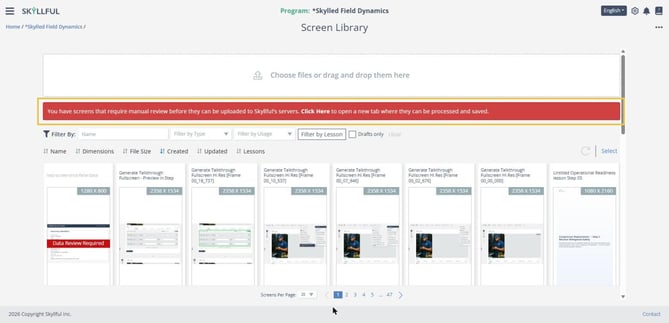
A screenshot that is waiting for review shows a red Data Review Required label on its tile, and the Screen Library shows a red banner: "You have screens that require manual review before they can be uploaded to Skyllful's servers." Selecting Click Here in the banner opens the Data Review Tool in a new browser tab.
What should you know before you start?
- Each screenshot is reviewed individually. Every screenshot waiting for review is listed on the left side of the Data Review Tool.
- A screenshot that is waiting for review is held in the browser tab where you added it. It is not on Skyllful's servers, and it is not visible to anyone else or from any other device or tab, until you select Upload.
- Closing that browser tab, or selecting Close in the Data Review Tool and confirming Leave Anyway, discards unreviewed screenshots and any unsaved edits. Refreshing the page alone does not discard them.
- Only screenshots uploaded after the data review setting is enabled route to review. Screenshots that are already in the Screen Library are not affected.
- The first text scan is fast but can miss some text. If text you need to redact is not detected, use Click to Enhance Text Detection to run a deeper scan. See Bulk Replace Sensitive Data in the Data Review Tool.
Where do you go next?
- Enabling the Data Review Tool in a Learning Program: Turn on data review and set the three Replica Capture Settings.
- Uploading Screenshots with Local Data Masking Enabled: See how the upload flow changes once it is on.
- Bulk Replace Sensitive Data in the Data Review Tool: Find and replace sensitive data across a screenshot in one action.
Skyllful Knowledge Base | Content Developers, Instructional Designers, Program Administrators