
What is the Learning Program Overview Screen?
When you open a Learning Program, the Overview Screen is your main hub for managing it. The header shows the program name, a Home breadcrumb at the top left takes you back to the home screen, and the body brings the program's key details and access points into one place: five overview cards, three management panels, and a Quick Links row.
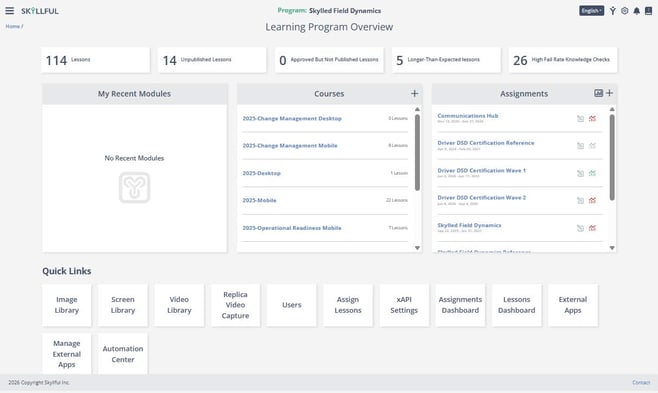
The Learning Program Overview screen: overview cards, management panels, and Quick Links.
What do the overview cards show?
The overview cards sit at the top of the page, directly under the Learning Program Overview header. Each card surfaces a metric worth watching.
Card |
What it shows |
|---|---|
| Lessons | The complete count of lessons in the program, including published lessons that are live for learners and unpublished lessons still in development. |
| Unpublished Lessons | How many lessons are still being developed and are not yet published. |
| Approved But Not Published Lessons | Lessons that have completed review but have not been made available to learners yet. |
| Longer-Than-Expected Lessons | Lessons that exceed your expected time limits and may need to be shortened or split. |
| High Fail Rate Knowledge Checks | Knowledge checks that learners consistently fail and that may need revision or clearer explanations. |
What are the management panels?
Three panels sit below the overview cards and give you working access to your content.
Panel |
What it does |
|---|---|
| My Recent Modules | Provides fast access to the modules you have opened most recently. |
| Courses | Lists all courses in the program. Select a course title to explore its modules and lessons, or click the + in the panel header to create a course. |
| Assignments | Displays the program's assignments. Click the + in the panel header to add an assignment, or the chart icon to open the Assignments Dashboard. |
What do the Quick Links open?
The Quick Links row sits below the panels and jumps you to common tools.
NOTE: The links you see depend on your permissions.
Quick Link |
What it opens |
|---|---|
| Image Library | Store and manage images such as brand logos, icons, and other assets for lesson design. |
| Screen Library | Access saved screens you can reuse when developing or editing lessons. |
| Video Library | Browse videos uploaded for lesson development or already used in published content. |
| Replica Video Capture | Launch Skyllful's built-in capture tool to record or edit screens for your lessons. |
| Users | View and manage the users who have access to the program. |
| Assign Lessons | Add lessons to assignments through a shortcut into the assignment flow. |
| xAPI Settings | Configure xAPI integrations for your organization. |
| Assignments Dashboard | View performance metrics for all assignments, including completion, engagement, and progress. |
| Lessons Dashboard | Analyze lesson performance across the program. |
| External Apps | Open the external applications connected to the program. |
| Manage External Apps | Add and manage the external applications available to the program. |
| Automation Center | Set up automation for the program, such as auto-enrollment rules. |
FAQ
What is the Learning Program Overview Screen? It is the control panel for a program, showing overview cards, management panels, and Quick Links in one place so you can monitor readiness and manage content.
What should I watch most closely? The High Fail Rate Knowledge Checks and Longer-Than-Expected Lessons cards. Reviewing them weekly helps you fix problems before they affect learners.
Why don't I see some Quick Links? Quick Links such as xAPI Settings can be hidden based on your permissions. Contact your administrator if you need access.
How do I get back to the home screen? Click Home in the breadcrumb at the top left of the Overview Screen.
Skyllful Knowledge Base | Administrators, Content Developers