
Why copy a style instead of setting one?
When you add or extract text on a Replica, the new element rarely matches the screen around it. Setting the font, size, and color by hand means reading the values off one element and typing them into another. The Style Picker does it in two clicks, and because it copies the whole style at once, the two elements match exactly rather than nearly.
How do you copy a text style onto an element?
The order matters, and it runs opposite to the way most people expect. You select the element you want to change first, then pick up the style you want to give it.
Step |
Action |
|---|---|
| 1 | Open the screen in Replica Maker. If you have just converted screenshots to Replicas, the converted screens open in Replica Maker for you. Otherwise, go to your Learning Program's Screen Library, click the ... menu on the screen you want, and select Edit. |
| 2 | Click the text element you want to restyle. The Text Properties panel opens on the right. |
| 3 | Click the Style Picker, the eyedropper icon at the right end of the Text Properties formatting row. |
| 4 | Click the text element that already has the style you want. Skyllful applies that style to the element from step 2 straight away. |
| 5 | Click Update to save the screen, then Close. |
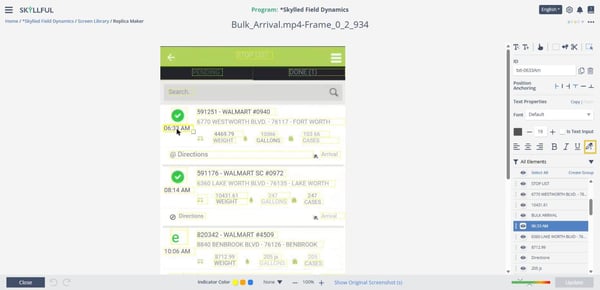
Select the element you want to restyle first. The Style Picker sits at the end of the Text Properties formatting row.
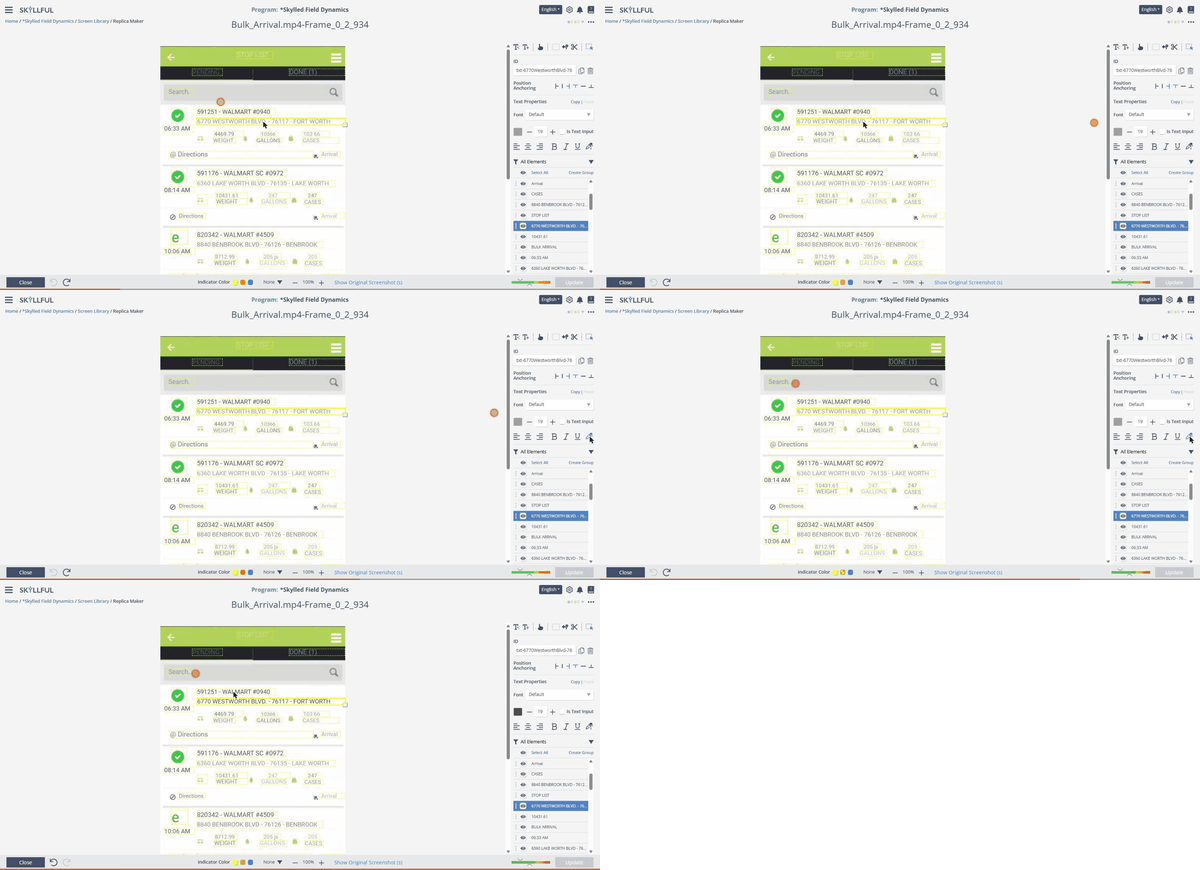
The address line takes on the heading's style the moment the heading is clicked. The recording starts with the screen already open in Replica Maker and stops before Update.
Note: The Style Picker appears only while a text element is selected, which is why it is not on the main toolbar. Its tooltip in Skyllful Studio reads Style Picker. The Copy and Paste links beside Text Properties do the same job in two steps if you prefer to pick up a style and hold on to it.
What if the style does not copy?
Check that the element you meant to change was the one selected when you clicked the Style Picker. If you had the styled element selected instead, the style went the wrong way. Use the undo arrow at the bottom of the editor before you click Update.
For anything else, contact your Local Administrator first. If your Local Administrator cannot resolve the issue, submit a case through the Skyllful support portal.
Skyllful Knowledge Base | Content Developers, Instructional Designers