
Where does the Data Review Tool live?
The Data Review Tool operates at the Learning Program level. Once enabled, screenshots uploaded to that program are held for local review in your browser before they transmit to the server.
How do you enable it?
Step |
Action |
|---|---|
| 1 | Open the Learning Program you want to configure. |
| 2 | Select the gear icon in the top right to open Learning Program Settings. |
| 3 | Go to the Screen Replicas tab. |
| 4 | Under Replica Capture Settings, turn on the settings you want.
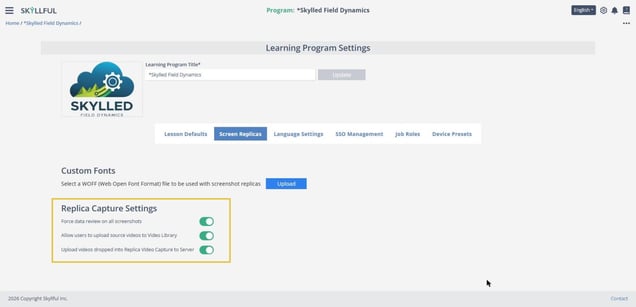 The Replica Capture Settings on the Screen Replicas tab. |
What does each setting do?
Setting |
What it does |
|---|---|
| Force data review on all screenshots | Requires every screenshot to go through local review before it uploads. |
| Allow users to upload source videos to Video Library | Controls whether source videos can be uploaded to the Video Library. |
| Upload videos dropped into Replica Video Capture to Server | Determines whether videos dropped into Replica Video Capture upload automatically. |
Note: The Screen Replicas tab also holds a Custom Fonts section for uploading a WOFF font file used with screenshot replicas. It is not part of the data review workflow.
What happens once it is on?
With Force data review on all screenshots turned on, every new screenshot added to the program is held in your browser until you review it in the Data Review Tool and select Upload. During review you can find and redact sensitive data, including replacing every occurrence at once.
Skyllful Knowledge Base | Program Administrators, Instructional Designers