
What can you change?
Editing changes how a course or module is labeled and presented. It does not change what is inside it.
ield |
What it is |
|---|---|
| Title | The name of the course or module, as it appears in the Courses and Modules panels and to your learners. |
| Description | A summary of the subject the course or module covers, so anyone who opens it can tell what the training teaches. |
| Thumbnail image | The image shown with the course or module. It cannot exceed 5 MB. |
Editing does not change the modules or lessons nested inside, who the content is assigned to, or whether learners can see it. That makes it a low-risk change. If you need to change any of those, use one of the other actions in the menu.
How do you edit a course or module?
Both use the same steps. The only difference is which panel you work in.
Step |
Action |
|---|---|
| 1 | Select the menu icon (☰), select your program name, select Studio, then select Courses Overview. |
| 2 | To edit a module, select its course in the Courses panel first so the Modules panel fills. To edit a course, skip this step. |
| 3 | Select the ... at the right of the row you want to change. |
| 4 | Select Edit. |
| 5 | Update the title, the description, or the thumbnail image. |
| 6 | Select Update. |
To close the dialog without saving, select the X at the top right instead.
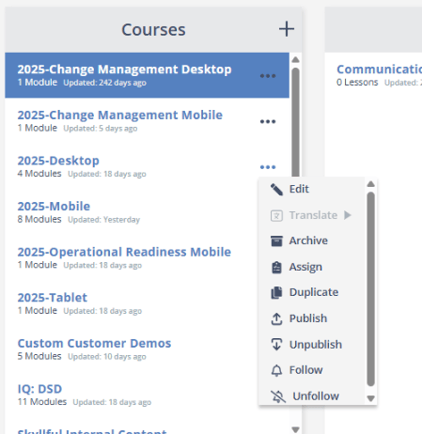
The course actions menu, with Edit at the top.
What are the other options in this menu?
Edit sits at the top of the actions menu. The rest of the menu covers the other things you can do with a course or module.
Option |
What it does |
|---|---|
| Translate | Opens translation options. Available when more than one language is enabled for the program. |
| Archive | Retires the item. See Archive a Course or Module. |
| Assign | Assigns the content to learners. |
| Duplicate | Creates a copy in the same location. |
| Copy To and Move To | Modules only. See Organize Modules. |
| Publish and Unpublish | Controls learner access. See Publish and Unpublish a Course or Module. |
| Follow and Unfollow | Turns notifications for the item on or off. |
FAQ
Is editing risky? No. Editing changes only the title, description, and thumbnail image. It does not touch the content inside the course or module, its assignments, or whether it is published.
Can I edit a course and a module at the same time? No. Edit works on one item at a time.
Does editing a course change its modules? No. Editing changes only the course's own title, description, and image. The modules and lessons inside it are untouched.
Can I change the thumbnail image after creating a course? Yes. Open Edit and add or replace the image at any time. The image cannot exceed 5 MB.
Why is Translate greyed out? Translation options become available when more than one language is enabled for the Learning Program.
Skyllful Knowledge Base | Administrators, Content Developers