
Before you begin
A scrolling screen is a group on the Replica that holds more content than fits in its own area. You supply the extra content as cropped screen images, one per segment, so download the screens you want to add and crop them before you start.
How do you build a scrolling screen?
Step |
Action |
|---|---|
| 1 | Open the screen in Replica Maker. If you have just converted screenshots to Replicas, the converted screens open in Replica Maker for you. Otherwise, go to your Learning Program's Screen Library, click the ... menu on the screen you want, and select Edit. |
| 2 | Select the Button Add tool and drag over the portion of the screen you want to scroll. |
| 3 | Click Create Group at the top of the All Elements list. The group appears with Group Properties on the right, and its ID fills in as Group1, Group2, and so on. |
| 4 | Check Is Scrollable. Scrollbars appear on the group and Edit Contents becomes available. |
| 5 | Click Edit Contents. The Scroll Group Components view opens with a + on each side of the group. |
| 6 | Click the + on the side where the next segment belongs and add the segment. You can add segments in any direction. |
| 7 | Align the new segment with your screen. |
| 8 | To have Skyllful find the buttons and text in the new segment for you, check AI Detect: Buttons or AI Detect: Text before you append. Then click Append. |
| 9 | Add any elements that belong to the scrolling content, such as buttons, by clicking and dragging inside the group. |
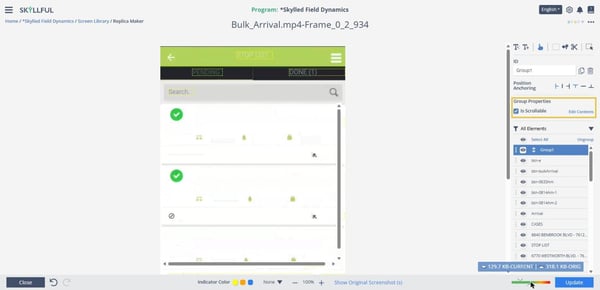
Checking Is Scrollable puts scrollbars on the group and makes Edit Contents available.
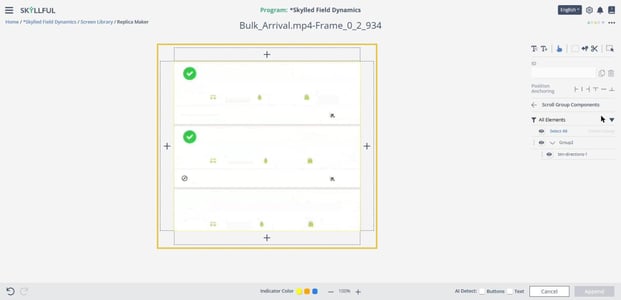
Edit Contents opens the Scroll Group Components view. The + on each side is where the next segment goes.
Note: The AI Detect checkboxes only apply to the segment you are appending. Set them before you click Append, not after.
What are the best practices?
- Capture more screenshots than you think you need, so you have enough overlap to stitch the segments together cleanly.
- Add every element that belongs to the scrolling content inside the scroll group, not on the main screen. An element left outside the group stays put while the content scrolls past it.
How do you troubleshoot scrolling problems?
Issue |
Quick fix |
|---|---|
| You cannot add content to a scrollable frame | Dragging and dropping or copying and pasting into a scrollable frame does not work. Add content through Edit Contents and Append instead. |
| Elements appear in odd places on the screen | The elements are probably outside the scroll group. Add them inside the group. |
| The group will not let you open Edit Contents | Is Scrollable is not checked. Edit Contents stays greyed out until it is. |
What if the scrolling screen does not work?
Contact your Local Administrator first. If your Local Administrator cannot resolve the issue, submit a case through the Skyllful support portal.
Skyllful Knowledge Base | Content Developers, Instructional Designers