
Before you start
A course lives inside a Learning Program, and a module lives inside a course. Create them in that order.
You are creating |
What has to exist first |
|---|---|
| A course | A Learning Program. |
| A module | A Learning Program and a course to hold the module. |
How do you create a course?
Courses are created from the + in the Courses panel header. The Courses panel appears on both the Learning Program Overview screen and the Courses Overview screen, and the + works the same way on each. The steps below use the Courses Overview screen, so you can create a course and its modules in one place.
Step |
Action |
|---|---|
| 1 | Select the menu icon (☰), select your program name, select Studio, then select Courses Overview. |
| 2 | Select the + in the Courses panel header. |
| 3 | Enter a Course Title. |
| 4 | Enter a Course Description. This is optional. Summarize the subject the course covers, so anyone who opens it can tell what the training teaches. |
| 5 | Select Choose or upload image to add a thumbnail. This is optional. The image cannot exceed 5 MB. |
| 6 | Select Create. |
The new course appears in its alphabetical position in the Courses panel, is selected automatically, and is ready to hold modules.
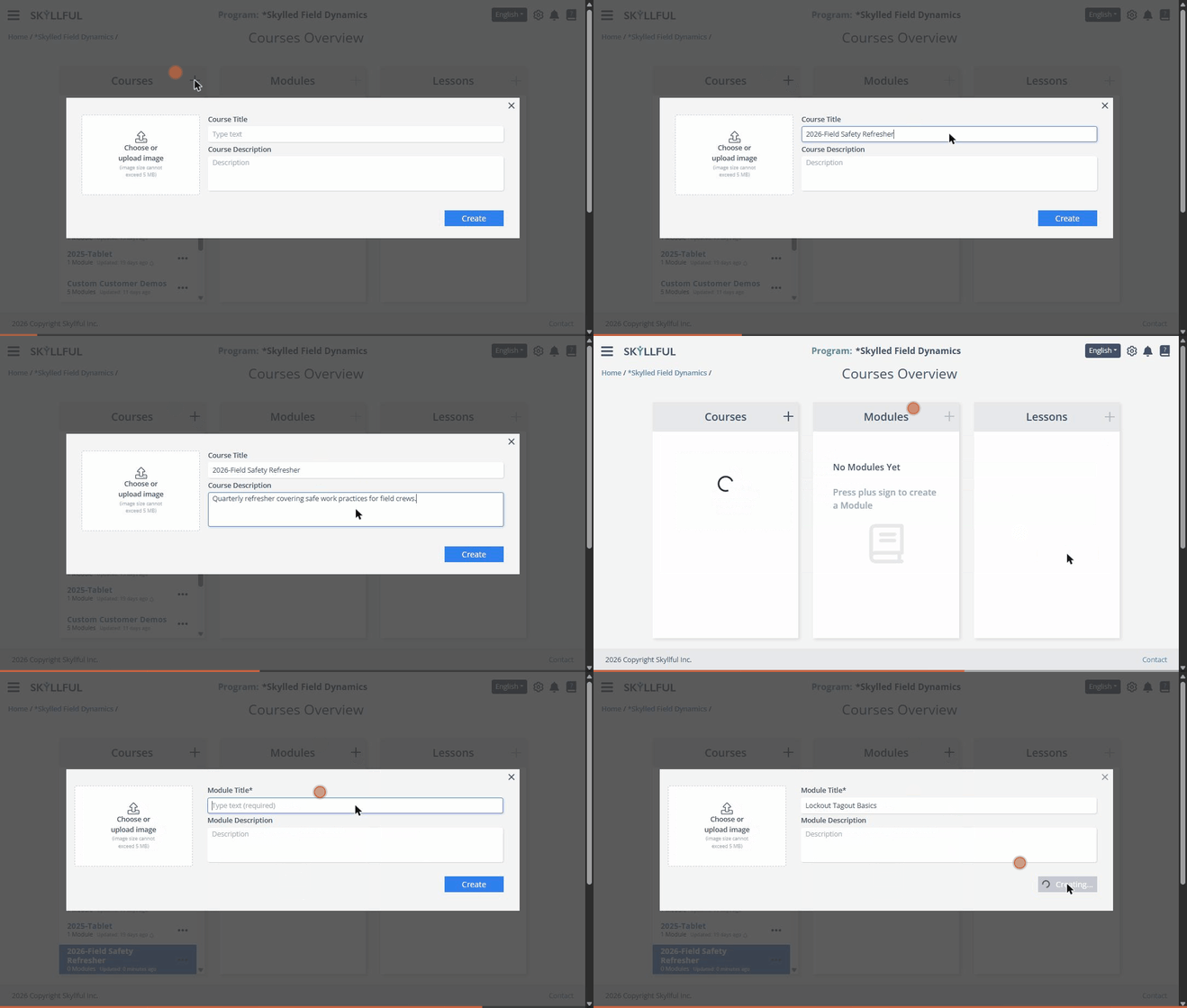
Creating a course and then a module inside it. The recording picks up at the Courses Overview screen, after step 1.
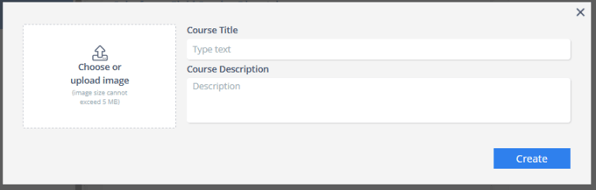
The create course dialog.
How do you create a module?
Modules are created from the Courses Overview screen, because you have to select the course that will hold the module. A course with no modules yet shows "No Modules Yet. Press plus sign to create a Module."
Step |
Action |
|---|---|
| 1 | On the Courses Overview screen, select the course that will hold the module in the Courses panel. The course highlights and the Modules panel fills with that course's modules. |
| 2 | Select the + in the Modules panel header. |
| 3 | Enter a Module Title. This field is required. |
| 4 | Enter a Module Description. This is optional. |
| 5 | Select Choose or upload image to add a thumbnail. This is optional. The image cannot exceed 5 MB. |
| 6 | Select Create. |
The new module appears in the Modules panel, is selected automatically, and is ready to hold lessons.
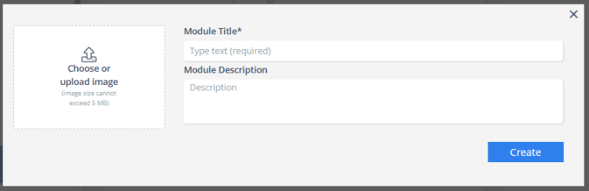
The create module dialog. Module Title is required.
What if the plus icon does not respond?
An inactive + means one of two things: nothing is selected in the panel to its left, or your permissions do not include creating that kind of content.
What you see |
What it means |
|---|---|
| The + in the Courses panel is inactive | Your permissions do not include creating courses. Contact your administrator. |
| The + in the Modules panel is inactive | No course is selected, or your permissions do not include creating modules. Select a course in the Courses panel first; if the + stays inactive, contact your administrator. |
| The + in the Lessons panel is inactive | No module is selected, or your permissions do not include creating lessons. Select a module in the Modules panel first; if the + stays inactive, contact your administrator. |
| The + in the Learning Programs panel is inactive | Your permissions do not include creating programs. Contact your administrator. |
FAQ
Is a title required? A module title is required. A course title is not marked as required, but give every course a clear title so content developers can find it later.
Can I add the thumbnail image later? Yes. Create the course or module first, then use Edit to add or change the image at any time.
How large can the thumbnail image be? The image cannot exceed 5 MB.
Why is the plus icon in the Modules panel inactive? Either no course is selected or you do not have permission to create modules. A module has to live inside a course, so select a course in the Courses panel first. If the plus icon stays inactive with a course selected, contact your administrator.
Where do new courses and modules appear? In the matching panel on the Courses Overview screen. A new course takes its alphabetical position in the list, and a new module is added to its course.
Skyllful Knowledge Base | Administrators, Content Developers