
How do you capture screens from a video?
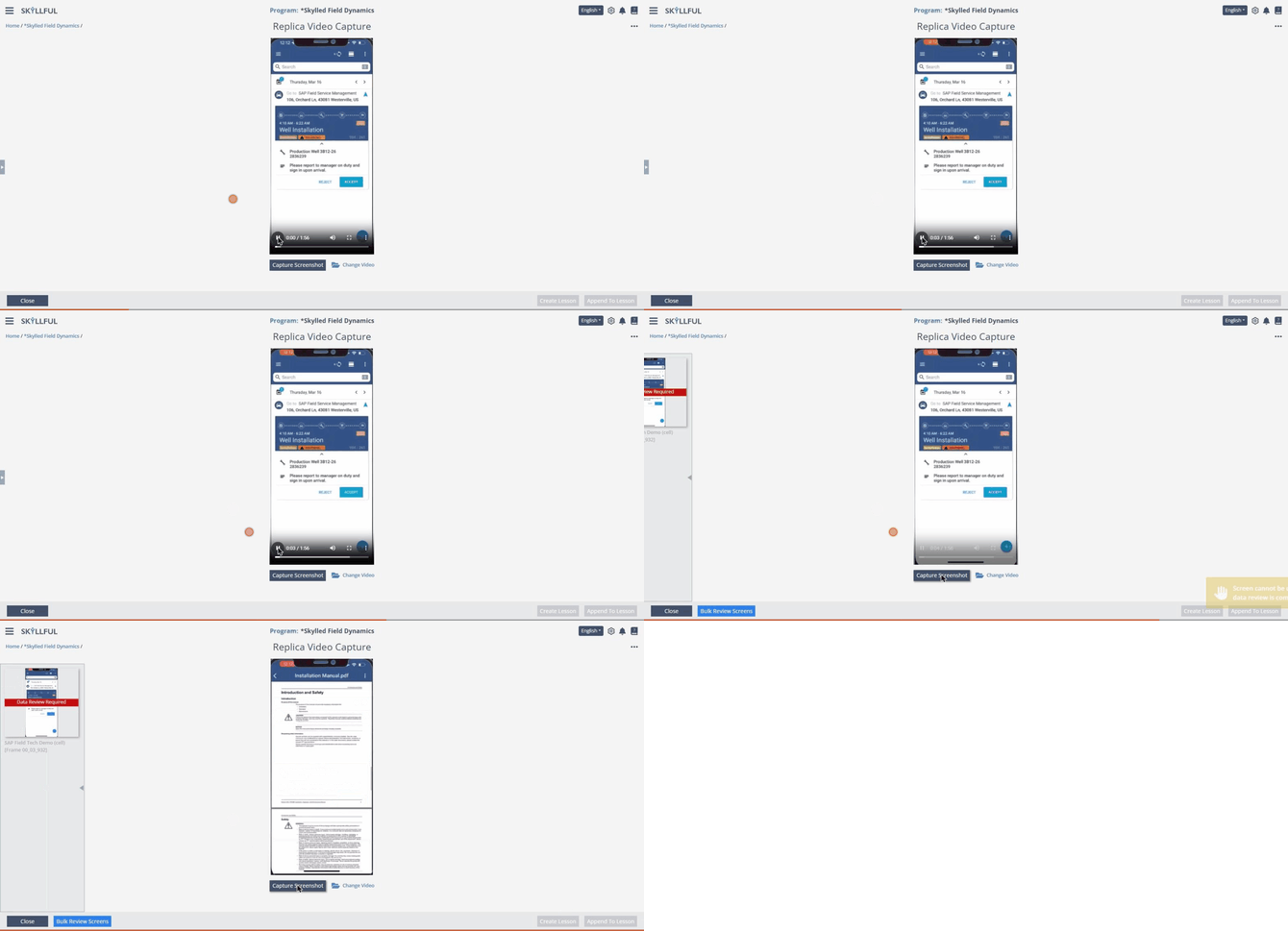
Capturing a screen from a loaded workflow video. The recording starts after the video is chosen (steps 1 through 3).
Step |
Action |
|---|---|
| 1 | Open Replica Video Capture for your Learning Program from Quick Links on the Learning Program Overview screen. |
| 2 | Select Choose or upload video. The video chooser opens with the videos already in the Video Library on the Lesson Videos and Source Videos tabs, an upload area for a new file (up to 1 GB), and a QR code for uploading a recording straight from a device. |
| 3 | Choose your video from the list. A green outline confirms your choice. Then click Select to load the video.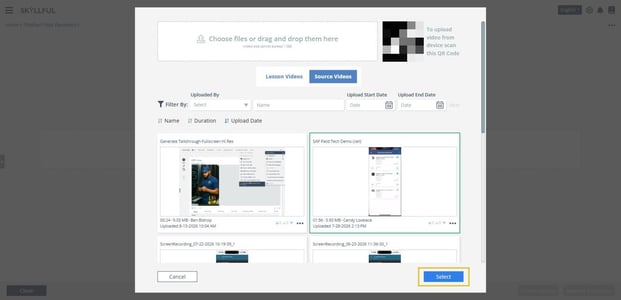 Select the video, then select Select. |
| 4 | Configure the capture settings in the options menu at the top right of the screen: • Autocrop Screenshots: uses AI to make a best guess at cropping the screen boundaries. • Autoconvert Screenshots: automatically converts your captures into editable screen Replicas. Turn on Enabled, then choose whether to Detect Buttons and Extract Text. 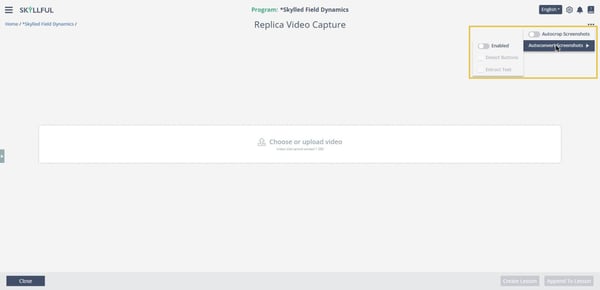 The capture settings in the options menu. |
| 5 | Play the video and select Capture Screenshot for each relevant screen.
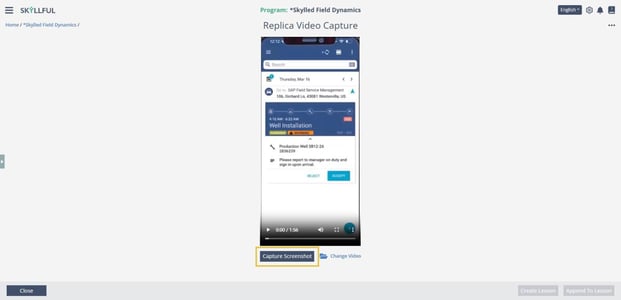 The Capture Screenshot button below the loaded video. Change Video swaps in a different video. |
| 6 | Each capture appears in the tray on the left, named for the video and the frame time it was captured at.
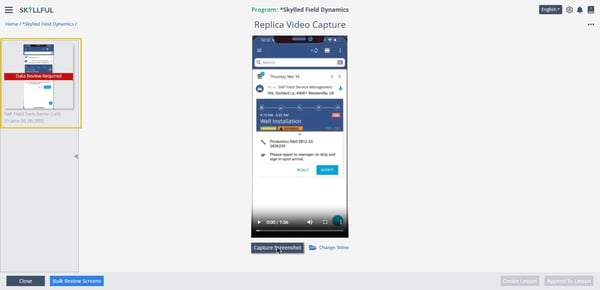 A captured screen in the tray. In this Learning Program, Local Data Masking marks each capture Data Review Required. |
| 7 | Review your captures, then choose what to do with them using the table below. |
What can you do with your captured screens?
Every screen you capture is added to the Screen Library, no matter which option you choose. The options control what else happens with the captures.
If you want to |
Do this |
|---|---|
| Add the captured screens to a new Lesson | Select Create Lesson. |
| Add the captured screens to an existing Lesson | Select Append To Lesson. |
| Review the screenshots in the Screen Library instead | Select Close. The captures stay in the Screen Library. |
| Save a copy of a screenshot to your device | In the Screen Library, open the screen's actions menu and select Download Screenshot for the current version or Download Original Screenshot for the unedited original. |
Why do captures show Data Review Required?
When the Learning Program uses Local Data Masking, each capture is marked Data Review Required and is held in your browser until it is reviewed. Select Bulk Review Screens to open the Data Review Tool and review every capture in one pass. A capture uploads to the Screen Library only after its review.
Do not leave Replica Video Capture with unreviewed captures. If you try, an Unsaved Changes warning explains that unreviewed screens have not been uploaded and will be lost. Select Cancel and review the screens to keep them.
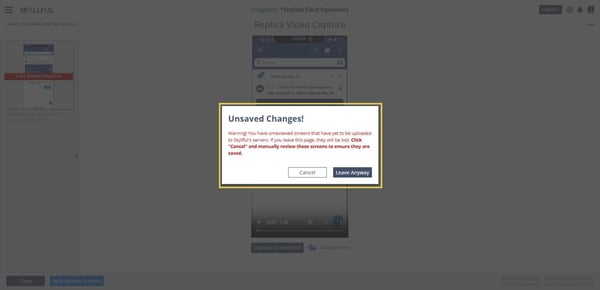
Leaving with unreviewed captures discards them. Cancel and review the screens to save your work.
What are the best practices?
- If your screens do not need much text editing, leave Autoconvert Screenshots off and convert the captures later from the Screen Library.
- When you batch edit screens, you can add cropping bounds easily.
- You can reorder captured screens before you import them into a Lesson.
How do you troubleshoot capture problems?
Issue |
Quick fix |
|---|---|
| You cannot capture a screen with the mouse out of view | Capture the screen, then remove the mouse pointer from the Replica using the Skyllful editing tools. |
| You lose the option to import all captures into the Lesson | Some screens were converted with the editor behind the tray and others were not. Add all screens to your Lesson before you do any editing. |
| Your captures disappeared after you left the screen | Unreviewed captures are lost when you leave Replica Video Capture. Capture again, then review the screens before leaving. |
What if you cannot capture from a video?
Contact your Local Administrator first. If your Local Administrator cannot resolve the issue, submit a case through the Skyllful support portal.
Skyllful Knowledge Base | Content Developers, Instructional Designers