
Before you begin
Open the Screen Library for the Learning Program you are working in. You must choose the Select button in the toolbar before you can choose screenshots to convert.
How do you convert screenshots into Replicas?
Step |
Action |
|---|---|
| 1 | Open the Screen Library for your Learning Program. Use the Hamburger Menu, or use Quick Links on the Learning Program Overview screen. |
| 2 | Choose the Select button at the top right of the toolbar. The toolbar switches to an Actions menu and a Cancel link. |
| 3 | Select one or more screenshots. Hold Ctrl and select to add more screenshots to the selection. Each selected screen shows a green outline. To see only screenshots, set Filter by Type to Screenshot.
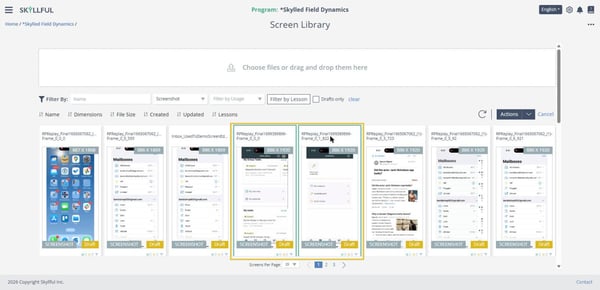 Two screenshots selected. The Actions menu activates once a screen is selected. |
| 4 | Select Actions, then select Convert (N).
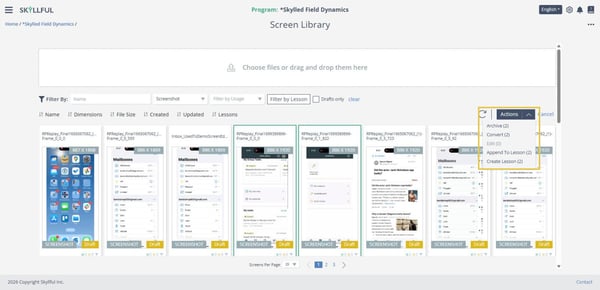 Convert in the Actions menu. The count shows how many selected screens each action applies to. |
| 5 | The Screen Conversion screen opens with your screenshots in a side panel. Adjust the yellow boundary around the screen area you want to keep, and set the options in the bottom bar: choose an Indicator Color, zoom if you need precision, and turn on the AI Detect settings (Buttons, Text) as needed.
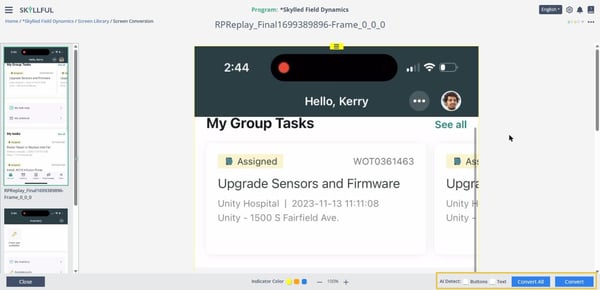 The Screen Conversion screen. The side panel holds every screenshot you selected. |
| 6 | Select Convert for the displayed screenshot, or Convert All to convert every screenshot in the side panel. |
What do the AI Detect settings do?
Setting |
What it does |
|---|---|
| Buttons | Detects the tappable controls in the screenshot and adds them as button elements, so you spend less time drawing buttons by hand. |
| Text | Extracts the text in the screenshot into editable text elements, so you can correct, translate, or replace it in Replica Maker. |
Skyllful also applies smart font matching automatically, so replicated text looks like the text in the source application.
How do you confirm the conversion?
- After a successful conversion, a set of editing tools appears alongside your screen Replica.
- In the Screen Library, the type badge in the lower corner of the card now shows Replica.
What are the best practices for converting screenshots?
- Crop screens before you convert them so your Replicas stay consistent.
- Open related screens at the same time to apply uniform cropping.
- Test the AI Detect settings on a few screens before you apply them to all screens.
- If AI detection misreads buttons or text, adjust the elements manually in Replica Maker.
- Keep workflows linear for clear, structured training.
- Preview Lessons regularly to confirm functionality and design consistency.
- You can bulk-convert by selecting several screens at once. After you select Convert All, the conversions run in the background.
How do you troubleshoot conversion problems?
Issue |
Quick fix |
|---|---|
| You cannot select screenshots to convert | Select the Select button in the top toolbar before you choose your screenshots. |
| Convert All does not seem to finish right away | Conversions run in the background after you select Convert All. Wait for them to complete. |
| Text was missed or misread on the Replica | Correct it in Replica Maker with the Text Extract and Text Add tools. For a low-resolution or compressed screenshot held for data review, Enhanced Text Detection in the Data Review Tool can find text that standard detection misses. |
What if you cannot convert a screenshot?
Contact your Local Administrator first. If your Local Administrator cannot resolve the issue, submit a case through the Skyllful support portal.
Skyllful Knowledge Base | Content Developers, Instructional Designers