
What tools do you need?
You need the following tools before you begin.
- Google Chrome browser.
- The SingleFile Chrome extension.
- A plain text editor, such as Notepad.
Before you begin
Capture only webpages you are authorized to use. Before you capture a page, make sure any dynamic content you want to include is visible on screen. Sign in, expand menus, and load images first, because SingleFile captures only what is visible when you save.
How do you capture a webpage with SingleFile?
Step |
Action |
|---|---|
| 1 | Install the SingleFile extension from the Chrome Web Store. |
| 2 | Pin SingleFile to your Chrome toolbar. |
| 3 | Open the webpage you want to capture. |
| 4 | Make all dynamic content visible on the page. |
| 5 | Select the SingleFile icon in the toolbar. |
| 6 | Select Save in the popup. |
What happens after you capture the page?
SingleFile processes the page and downloads a single HTML file that contains the whole page. The file holds the entire page in one document, so you can edit it in a plain text editor before you bring it into Studio.
How do you add the screen to Skyllful Studio?
Step |
Action |
|---|---|
| 1 | In Skyllful Studio, open the main menu, expand Studio, and select Screen Library. |
| 2 | Drag your HTML file into Choose files or drag and drop them here, or select the area to browse for the file.
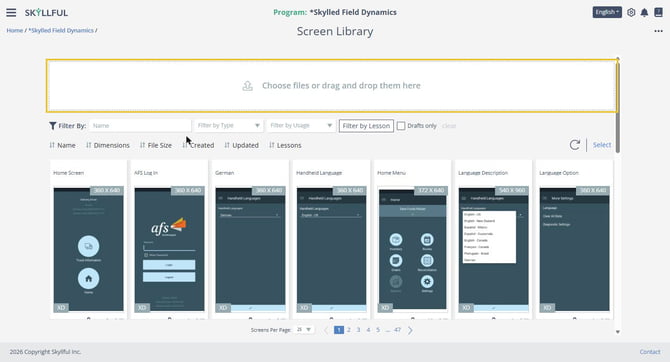 The Screen Library upload area. |
Note: A captured webpage is added as an HTML screen. Each screen card shows its type in the lower left corner, so an HTML screen is marked HTML. To see only these screens, set Filter by Type to HTML.
Important notes
SingleFile captures only the content that is visible when you save, so load all dynamic content first. Capture webpages only when you are authorized to use them.
If you need to change the captured page before you upload it, see Edit an HTML Capture.
Skyllful Knowledge Base | Content Developers, Instructional Designers