
What is bulk replace?
While a screenshot is held for local review, the Find and Replace panel of the Data Review Tool matches text anywhere in the screenshot. Matching text is extracted and replaced in one action, and everything happens in your browser before the screenshot is uploaded.
How do you replace matching text?
Step |
Action |
|---|---|
| 1 | In the Data Review Tool, type the text to find in Find Text. The matches highlight in the screenshot, the detected text list filters to the matching entries, and the button below updates with a live count, for example Replace (1) Matches.
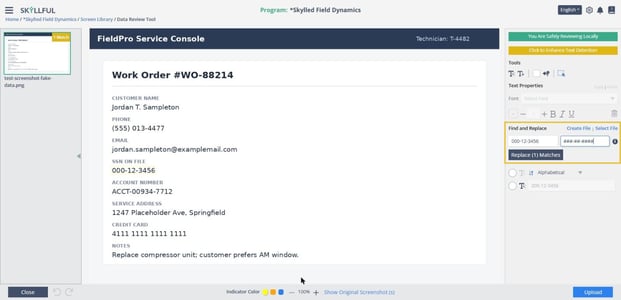 Typing a value in Find Text highlights the match and counts it on the Replace button. |
| 2 | Type the replacement in Replace With. To black out a value rather than replace it, you can use a masking pattern such as ###-##-####. |
| 3 | Select Replace (N) Matches. |
| 4 | If any matched text has not been extracted into an editable element yet, an Extract before replacing? dialog asks how to proceed. Select Extract and Replace to extract and replace it, or Ignore to skip unextracted matches. |
| 5 | The replacement renders into the screenshot. Use the undo arrow in the bottom bar if the result is not what you wanted.
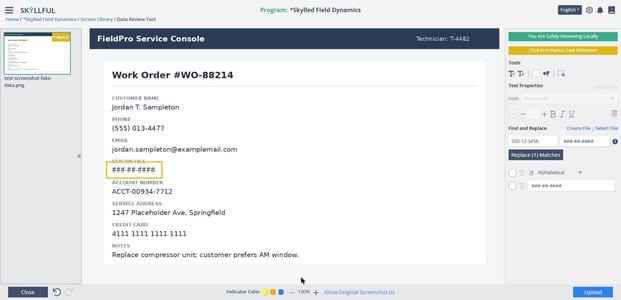 The replaced value is drawn into the image over a matching background. |
Can you use patterns instead of exact text?
Yes. Find Text accepts regular expressions, and Replace With supports substitution patterns. Select the info icon beside the fields to see them in the product.
Pattern |
What it inserts |
|---|---|
| $& | The matched substring. |
| $` | The substring before the match. |
| $' | The substring after the match. |
| $1, $2, ... | The regex capturing group by number. |
| $<name> | The regex capturing group with that group name. |
| $$ | A literal $ character. |
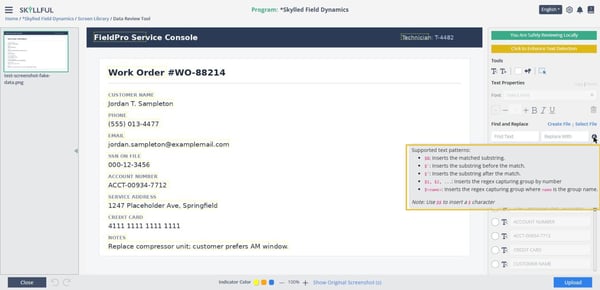
The supported text patterns, shown by the info icon beside Find and Replace.
Can you save rules and reuse them?
Yes. Find and Replace supports rule files, so a set of find and replace pairs can be applied together.
- Create File starts a new rule file. With a file active, the panel switches to file mode.
- Add CSV Row adds the current Find Text and Replace With pair to the file as a rule row.
- Each rule row shows its own live match count, and the X beside a row removes it.
- Replace (N) Matches applies every rule in the file in one action.
- Select File loads an existing rule file, and Change File and Clear swap or detach the active file.
What if the text you need is not found?
The first text scan is fast but can miss some values. If a value you can see in the screenshot gets no match, select Click to Enhance Text Detection. An Enhanced Image Processing dialog explains that re-scanning uses enhanced algorithms and may take a few minutes, and warns that re-scanning may overwrite edits while extracted elements are preserved. Keep the tab active while it runs. When it finishes, the additional text is detected and can be matched and replaced.
Note: Matching runs against the text the tool has detected. A value that is split across separate detected elements, or that was read imperfectly, may need a broader search term or a regular expression to match.
Skyllful Knowledge Base | Content Developers, Instructional Designers