
What is Skyllful Studio?
Skyllful Studio is the content authoring component of the Skyllful Platform. In Studio, you build interactive training Lessons that simulate real software workflows. Learners complete those lessons in Skyllful Simulator on their mobile devices or desktop browsers.
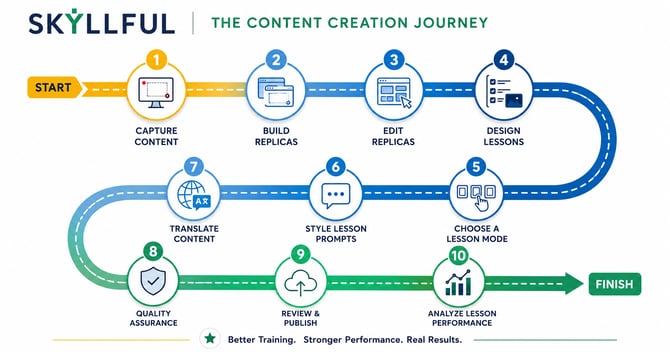
Content in Skyllful Studio follows a clear sequence from start to finish.
Content in Skyllful Studio follows a clear sequence from start to finish:
Step |
What you do |
|---|---|
|
1. Capture Content |
Record or screenshot the software your learners need to practice |
|
2. Build Replicas |
Convert your captures into interactive, simulated screens |
|
3. Edit Replicas |
Refine replica elements, interactions, and data privacy settings |
|
4. Design Lessons |
Assemble replicas into step-by-step lessons in the Lesson Builder |
|
5. Choose a Lesson Mode |
Set how learners will interact with the lesson |
|
6. Style Lesson Prompts |
Customize the dialog prompts learners see during training |
|
7. Translate Content |
Convert lessons into other languages for multilingual teams |
|
8. Quality Assurance |
Review lessons for accuracy and usability before publishing |
|
9. Review & Publish |
Submit lessons for approval and publish to learners |
|
10. Analyze Lesson Performance |
Review lesson data to improve content quality |
What you will find in this section
Studio Libraries — How to store and reuse images, captured screens, and videos across Lessons using the Image, Screen, and Video Libraries.
Capture Content — How to record live software workflows and capture web-based application screens for use in Lessons.
Build Replicas — How to use the Replica Maker to convert captured screens into interactive simulated environments.
Data Privacy and Bulk Replace — How to protect sensitive information with Local Data Masking and the Data Review Tool.
Edit Replicas — How to refine Replica elements including buttons, text fields, and scrolls.
Design Lessons — How to assemble Replicas into Lessons using the Lesson Builder, including adding steps, screen prompts, and interactions.
Choose Lesson Modes — How to set the Lesson Mode (Talkthrough, Walkthrough, Practice, Knowledge Check, or Video) based on your training goals.
Style Lesson Prompts — How to customize the appearance and behavior of dialog prompt windows in your Lessons.
Translate Content — How to translate Lessons into other languages using AI translation or manual workflows.
Review & Publish — How to run the Lesson quality assurance checklist, submit Lessons for review, manage the approval workflow, and publish content to Learners.
Looking for Lesson performance data? Analyze Lesson Performance now lives in the Track Progress & Performance section.
New to Studio?
If you are just getting started, we recommend following the workflow in order, beginning with Capture Content and working through each step. Each sub-section builds on the one before it.
Skyllful Knowledge Base | Content Developers, Instructional Designers